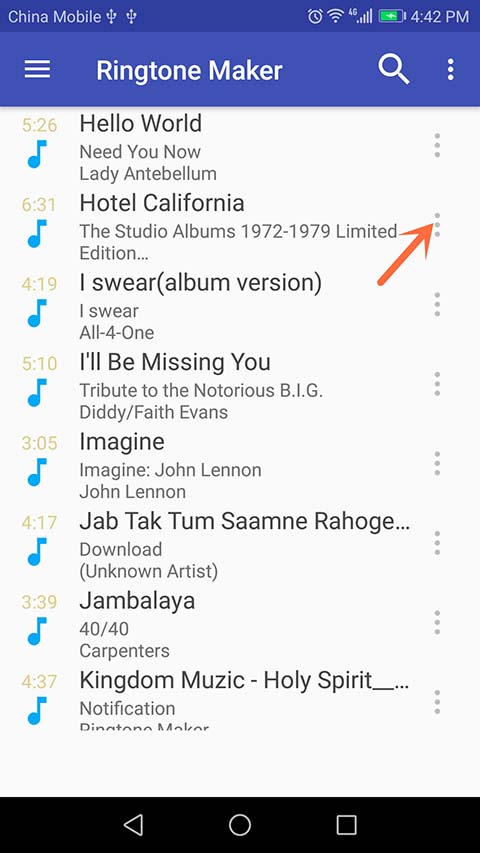
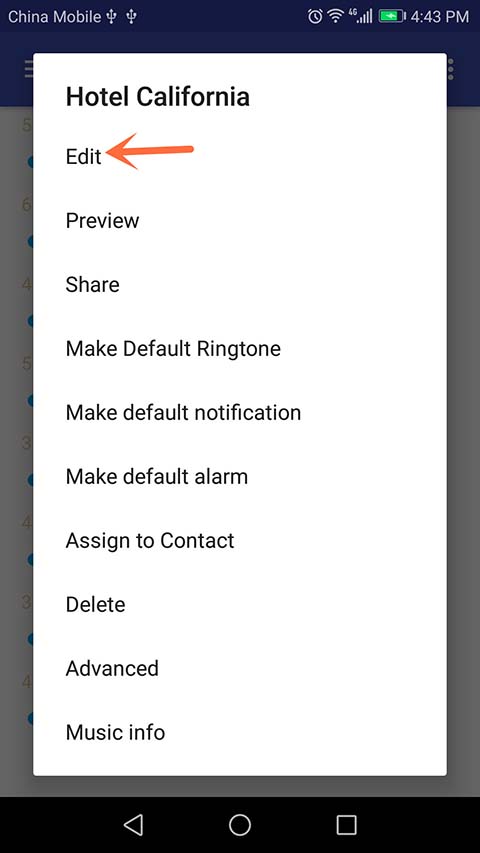
Step 1: After opening the application,you should see a list of audio files present on your android device as shown below. Now, tap the navigation bar next to the song you wish to edit then select 'Edit'.
Step 2: To select where you want the ringtone to begin/end, hold and drag the first and second adjustment buttons respectively to your desired length.
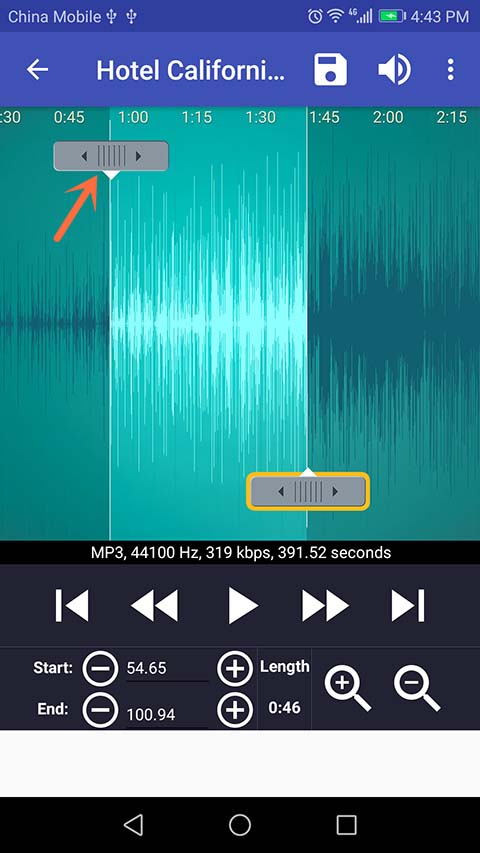
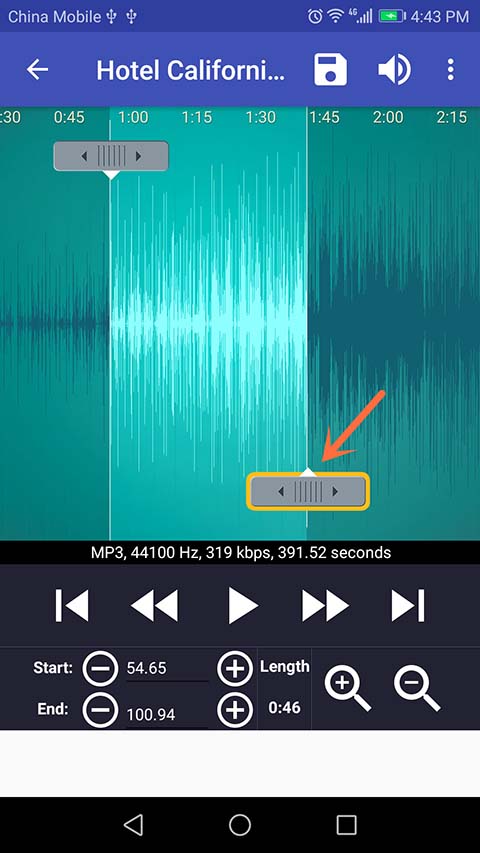
In order to get a more precised outcome and result, you can tap the Zoom in(+) or Zoom out(-) buttons to adjust the screen's view.
Also, if you know the exact time you would like the ringtone tone to start/end, you can directly input your desired values in the given fields.
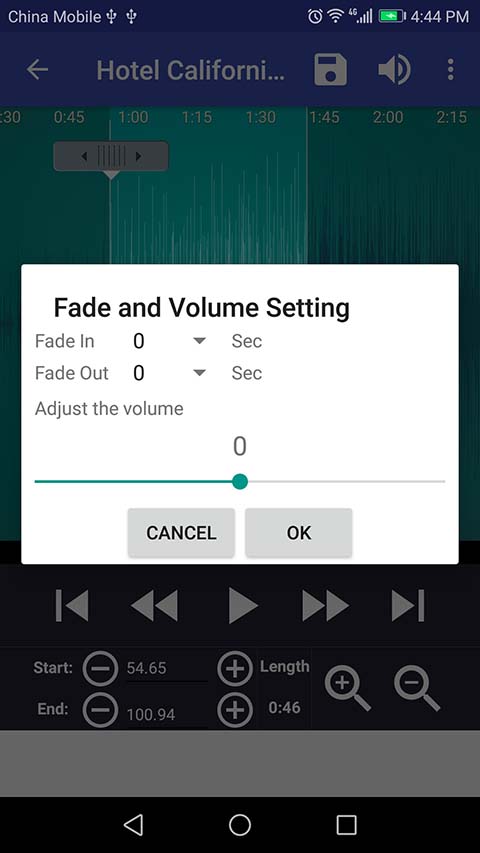
Step 3: To use the Fade in/Fade out effect, press the three dot in the upper right corner. Then select 'Fade and Volume'.
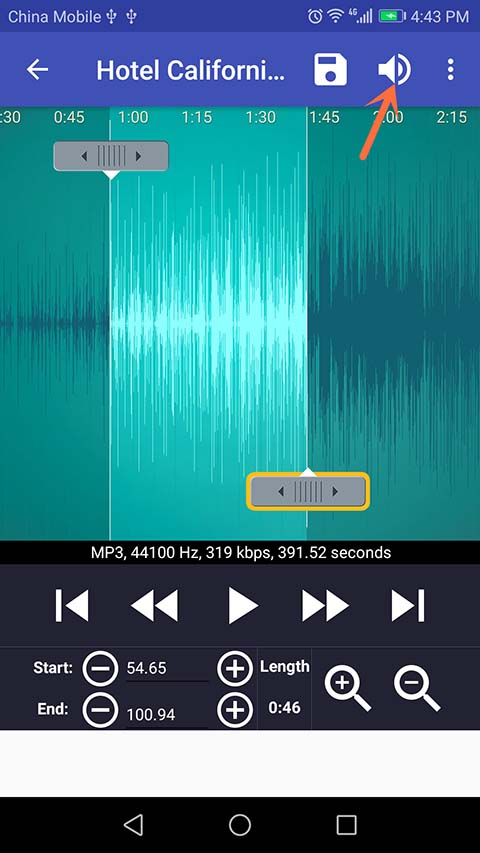
Tap the option button while still editing then set how long you want the effect to last(in seconds).
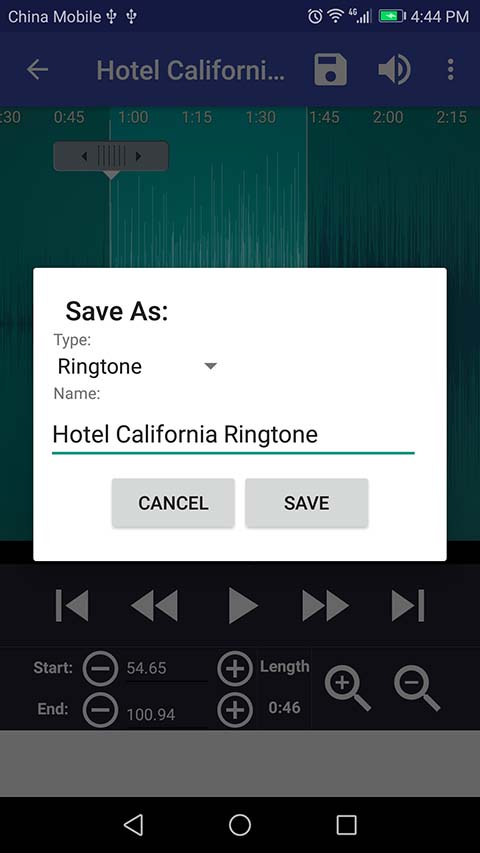
Press the 'Play' button to preview. If it's OK, tap the 'Save' button on the upper right corner of your screen to save your newly created tone.
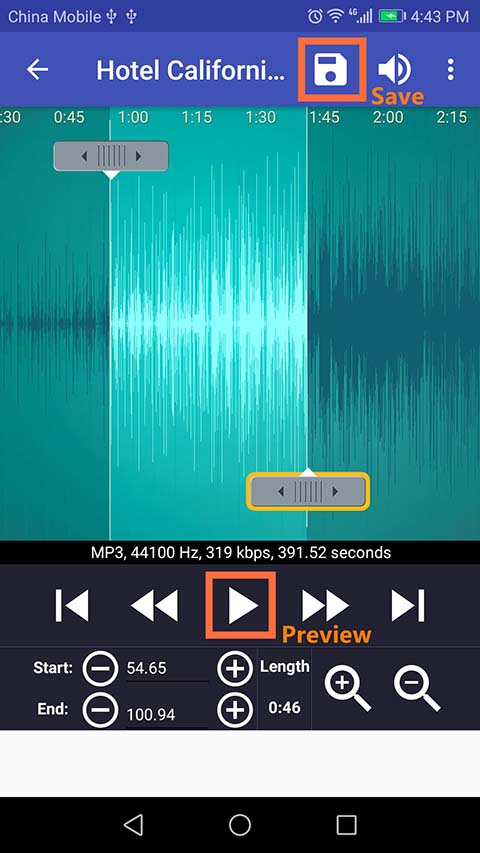
After you tap the save button, a menu will show up on which you are to select what you want the tone to be saved as and input the name the file will be saved as. After this, tap 'Save' and your ringtone will be saved.
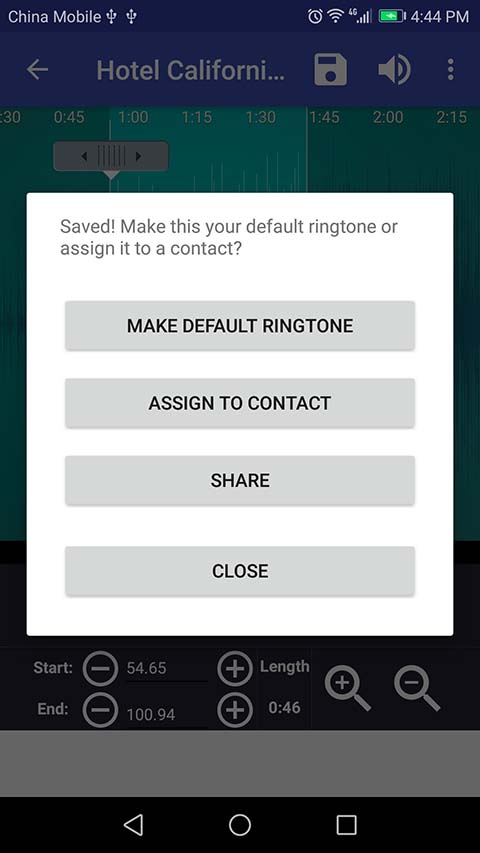
After saving your file, a pop-up menu will appear providing you with four options to choose from.